Photography and Imagery · Step 7 · 4 min read
Formats and compression
JPEG, PNG, WebP, AVIF and SVG: what each is for, what compression does to a photo, and how to choose a format and a quality by looking and measuring, not by habit. With real files and their real sizes.
The photo people see is the file you ship. Everything in this course, the choice, the crop, the treatment, reaches people as bytes. Too many bytes and the page is slow; too few and the photo falls apart. Picking a format and a quality is a design decision with a number on it, and it's one of the cheapest ways to make a product feel faster.
What you'll be able to do after reading:
- Choose between JPEG, PNG, WebP, AVIF and SVG for an image
- Explain what lossy compression does to a photo
- Pick a quality by looking, not by habit
- Compare formats yourself, with a free tool
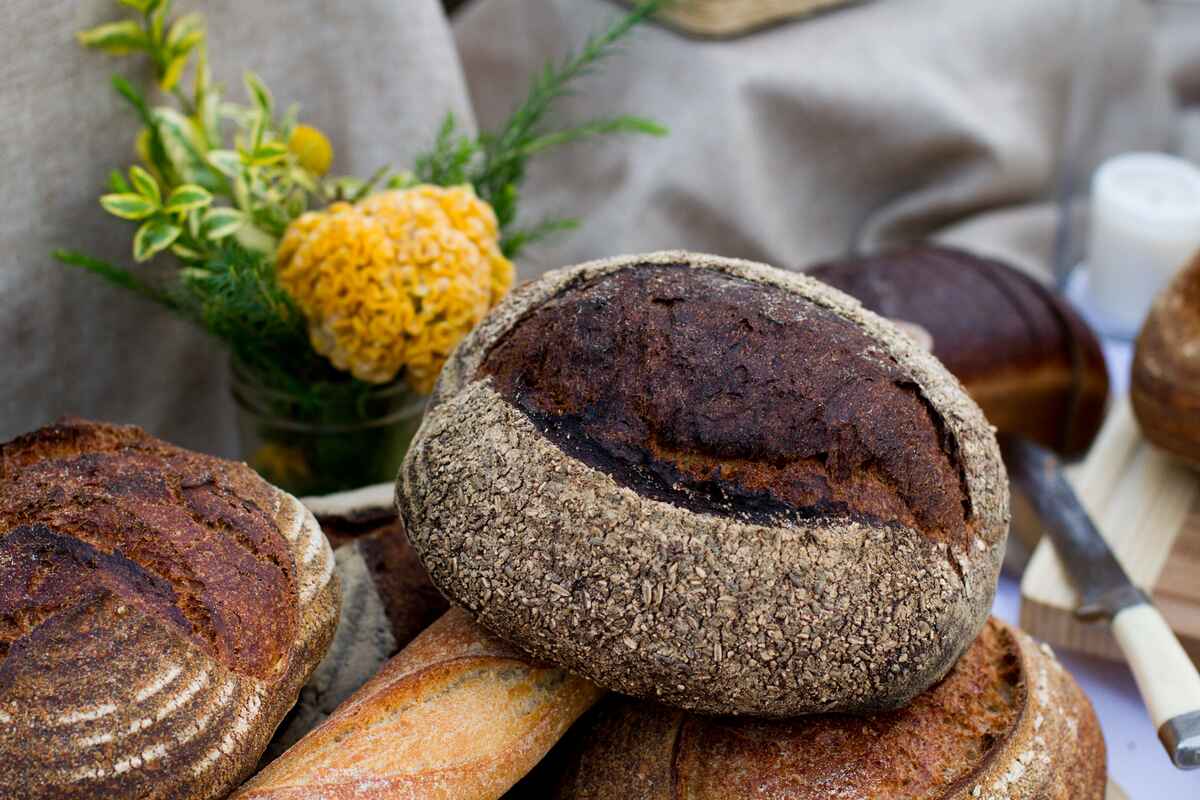
1. Same photo, four formats
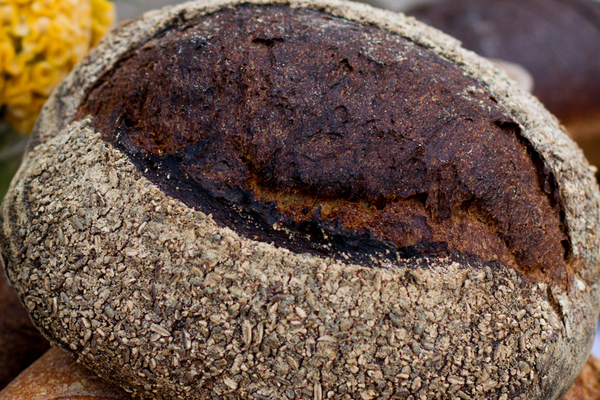 PNG: 557 KBLossless: every pixel kept
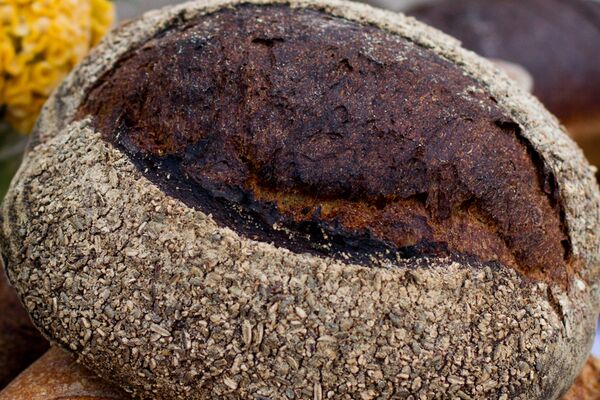 JPEG: 78 KBLossy, works everywhere
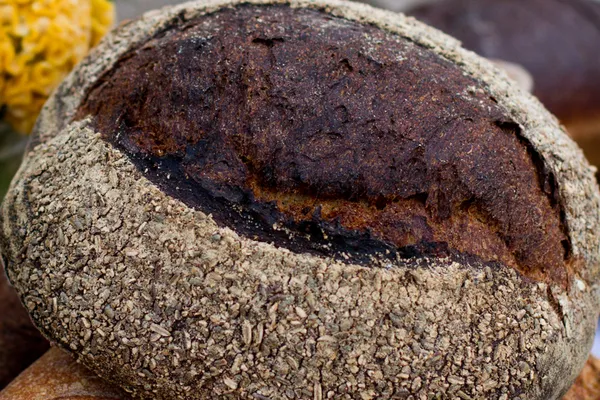 WebP: 77 KBLossy, a little smaller
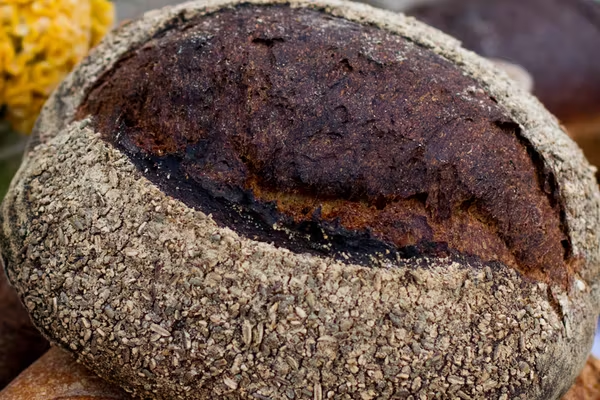 AVIF: 69 KBLossy, the smallest here

Four files, one photo, and you can't tell them apart. The sizes tell them apart: the PNG is about seven times the others. That's the whole lesson in one figure: for photos, a lossy format at a sensible quality looks the same and costs a fraction.
2. What each format is for
MDN's image format guide compares them in detail (MDN, image file type and format guide). The short version:
- JPEG: photos. Lossy, supported everywhere, still a fine default.
- PNG: lossless. For screenshots, flat graphics and images that need sharp edges or transparency. Too heavy for photos, as the figure shows.
- WebP: lossy or lossless, with transparency. Usually smaller than JPEG at the same look. Widely supported in browsers since 2023 (webstatus.dev, WebP).
- AVIF: the newest, often the smallest. Widely supported since July 2026 (webstatus.dev, AVIF); encoding is slower, and results vary more from photo to photo.
- SVG: not pixels but shapes. For icons, logos and line drawings, like this course's Hairline figures. Sharp at every size, and tiny.
3. What compression does
 Quality 10: 34 KBBlocks
 Quality 40: 96 KBSoft
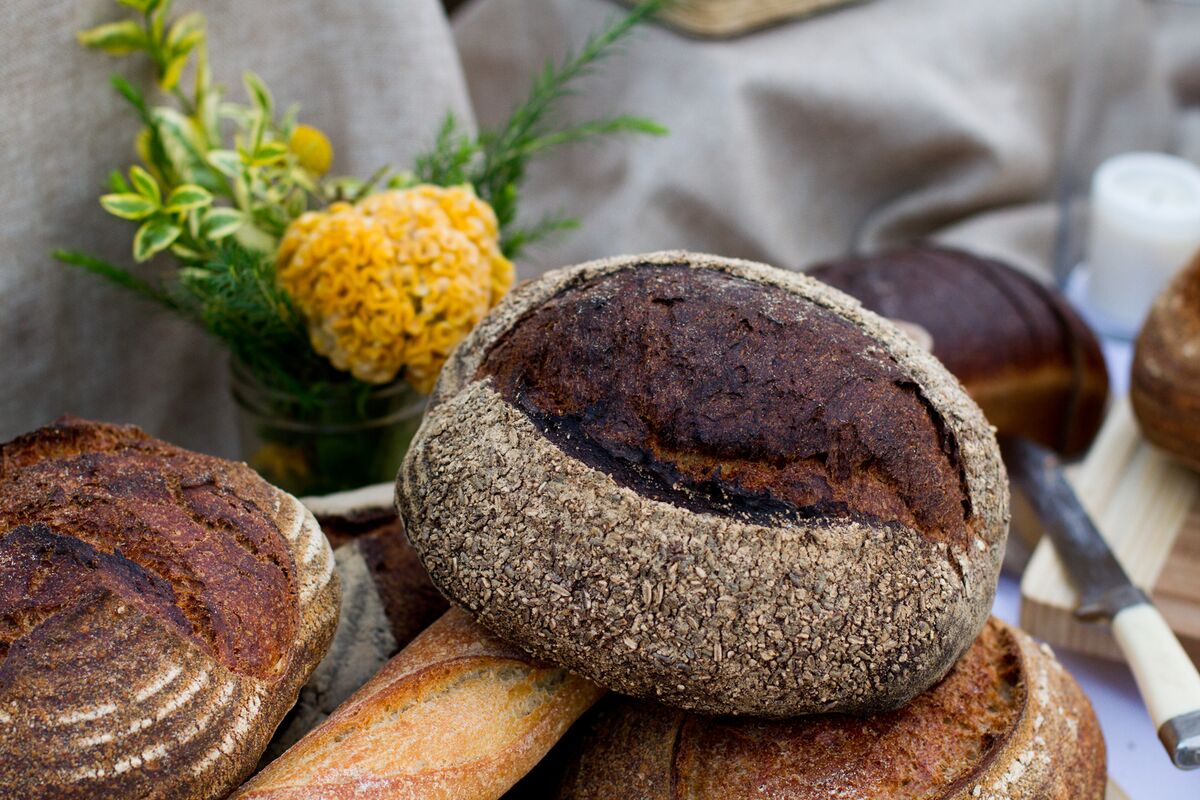 Quality 80: 196 KBClean
Lossy formats throw away detail people are unlikely to notice. Push too far and they notice: blocks, smeared edges, halos around contrast, bands in skies. The trade isn't linear. In the figure, going from quality 40 to 80 doubles the file, and most of what you'd notice was fixed by 40.
So the method is: lower the quality until you see a difference, at the size people will see it, then go one step back up. Check busy detail, like leaves and hair, and smooth areas, like skies and skin, where compression shows first.
4. Measure, don't trust rules of thumb
"AVIF is always smaller" and "WebP is 30% smaller" are true on average and wrong on many photos. In this lesson's test, WebP came out barely smaller than JPEG, and AVIF about an eighth smaller than WebP. The only way to know is to try with your photos.
Squoosh is a free tool from Google Chrome Labs that compresses an image in your browser with different formats and qualities, side by side, with the file size of each (Squoosh). Five minutes with three of your product photos teaches more than any table.
For a product with thousands of images, the choice belongs in the pipeline: an image service or build step that makes the formats and sizes automatically. The designer's job is to set the bar, the quality you accept, and to check it.
5. Common mistakes
- Photos saved as PNG because "PNG is better quality".
- Quality 100 by default: a much bigger file for a difference nobody sees.
- Screenshots of text saved as JPEG, with blurry halos around the letters.
- Judging compression zoomed in on a big monitor, instead of at the size people see.
- Icons and logos as photos, instead of SVG.
6. Vocabulary
| Term | Meaning |
|---|---|
| Lossy | Compression that throws away some detail to make the file smaller |
| Lossless | Compression that keeps every pixel |
| Quality | The setting, often 0 to 100, for how much a lossy format keeps |
| Artefact | A visible flaw from compression: blocks, halos, bands |
| SSIM | A measure of how similar a compressed image is to the original |
7. Try it (one free tool)
- Open Squoosh and drop in a photo from your product.
- Compare JPEG, WebP and AVIF at the same visual quality.
- Lower the quality until you see a difference at the size the photo appears on screen.
Reflection questions: How much smaller did the file get before you saw a difference? What would that mean for a page with twenty photos?
8. If you already practise
- Write the quality bar into the image style guide: format, quality range, and the photos it was tested on.
- Ask for the formats to be made automatically, from one master file.
- Keep masters at full size and full quality; never edit the compressed copy.
Checklist
Learn more
- MDN, Image file type and format guide
- Squoosh, by Google Chrome Labs
- web.dev, Learn Images
Books, courses and videos to go deeper
Book links go to Amazon. As an Amazon Associate I earn from qualifying purchases, at no extra cost to you.
Related
Responsive images and art direction · Images and page speed · Grade, black and white and duotone · Image format chooser