Photography and Imagery · Step 7 · 4 min read
Alt text that helps
Alt text is the image for people who can't see it. How to tell decorative, informative, functional and complex images apart, what to write for each, and why the same photo can need different alt text in different places.
Alt text is the image, for everyone who can't see it. For a screen reader user, a search engine or someone on a slow connection, the words are all there is. So the question isn't "what's in the photo?" but "what is this photo doing here?", the question this course started with. Answer it in a sentence, and you've written good alt text.
What you'll be able to do after reading:
- Tell decorative, informative, functional and complex images apart
- Write alt text for each kind
- Know when the right alt text is empty
- Make alt text part of the design, not an afterthought
1. Why it matters
- It's still missing everywhere. The WebAIM Million, an automated check of the top million home pages, found missing alt text on 53.1% of them in 2026; 16.2% of all home page images had none (WebAIM Million 2026).
- People notice. In WebAIM's survey of screen reader users, "images with missing or improper descriptions" was among the six most problematic items on the web (WebAIM, Screen Reader User Survey #10, 2024).
2. Four kinds, four answers
| Image | Where it is | Weak | Better |
|---|---|---|---|
 | Mood photo behind the headline "Walks near you" | alt="forest" | alt="" (it's decoration; the headline says it all) |
 | Product photo on the page that sells it | alt="headphones.jpg" | alt="Black over-ear headphones, folded, with thick padded cushions." |
 | The only content of a link to the coffee menu | alt="A white mug on a wooden table" | alt="Coffee menu" (say where the link goes) |
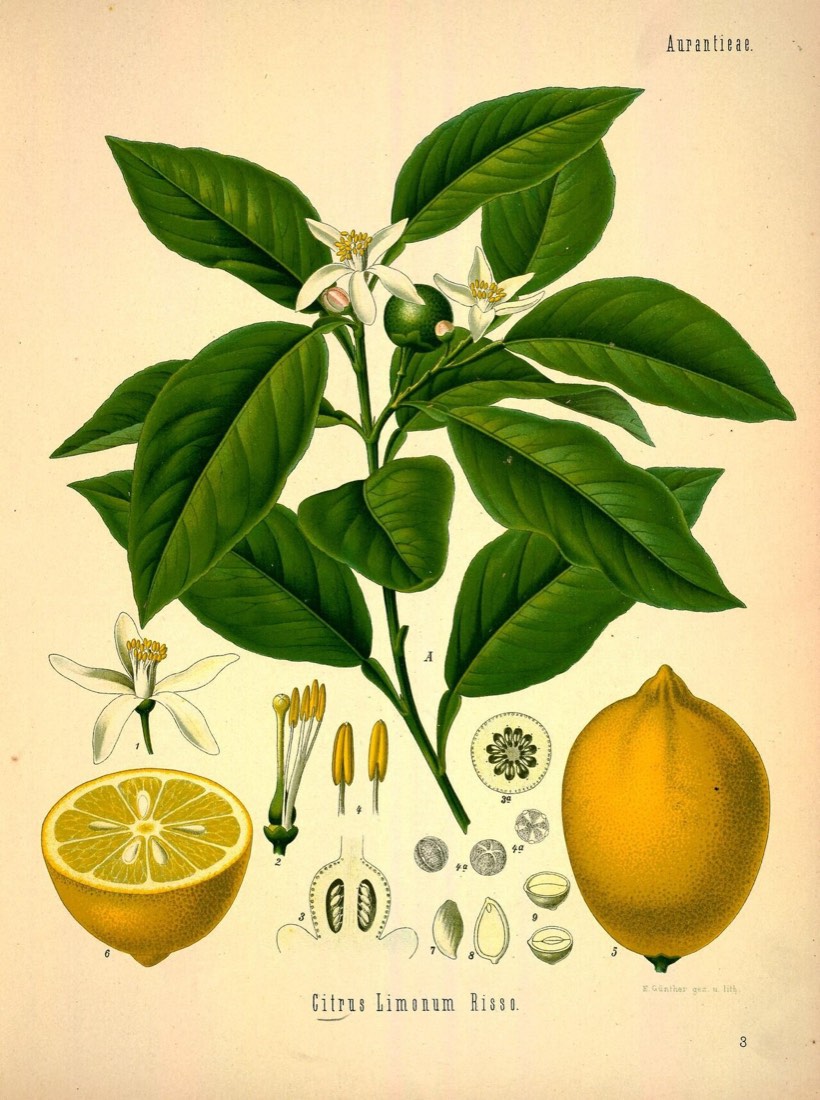 | Botanical plate in a lesson about citrus | alt="Lemon" | A short alt, "Botanical plate of the lemon tree: branch, flower, fruit and cross-sections", and a full description in the text |
The W3C images tutorial sorts images by what they do, and gives each a rule (W3C WAI, Images tutorial):
- Decorative: it adds mood, no information. Give it an empty alt,
alt="", so screen readers skip it. Don't leave the attribute out: then some read the file name. - Informative: it shows something people need. Describe that, in a sentence: what someone sighted would take from it.
- Functional: it's a link or a button. Say what it does or where it goes, not what it looks like.
- Complex: a chart, a map, a diagram. A short alt that says what it is, and the full information in the text nearby.
When you're not sure which kind an image is, the W3C's alt decision tree walks you through it in a few questions (W3C WAI, An alt decision tree).
3. Writing it well
- Lead with what matters for the job. On a product page, the product; in a news story, what happened.
- Skip "image of" and "photo of". Screen readers already say it's an image.
- Keep it short. One sentence is usually enough; put long descriptions in the text.
- Don't repeat the caption or the text next to it. If the text already says it, the image may be decorative here.
- Text in the image goes in the alt, word for word, if it matters.
And for the images in this course's Step 4: say a generated image is generated, in the alt and on the image (see Labels and provenance).
4. Alt text is a design decision
The person who knows why an image is there is the person who chose it. That's usually a designer or a writer, not the developer who adds the tag. So:
- Write alt text in the design, next to the image, like any other copy.
- Store it in the image library with the source, licence and focal point, but expect to change it per use: the same photo can be decorative on one page and informative on another.
- Review it like copy, in the same pass.
This is also where the course comes full circle. In What an image does in a product you named each image's job. Alt text is that job, written down.
5. Common mistakes
- No alt attribute at all, so the file name gets read.
- "Image", "photo" or the file name as alt text.
- Long, poetic descriptions of decorative images.
- Describing a link's image instead of its destination.
- A chart with "chart" as alt text and no data anywhere.
6. Vocabulary
| Term | Meaning |
|---|---|
| Alt text | The text alternative for an image, in the alt attribute |
| Empty alt | alt="": tells assistive technology the image is decoration |
| Screen reader | Software that reads the screen aloud or in braille |
| Functional image | An image that is a link or a button |
| Complex image | A chart, map or diagram whose information needs more than a sentence |
7. Try it (no tools needed)
- Take five images from a page you designed.
- For each, decide its kind: decorative, informative, functional or complex.
- Write its alt text in one sentence, or
alt="".
Reflection questions: Did any image turn out to be decorative once you asked what it does? Did any need more than a sentence?
8. If you already practise
- Add an alt text field to every image in your design files and specs.
- Turn on a screen reader (VoiceOver on Mac and iPhone, TalkBack on Android, NVDA on Windows) and listen to one of your pages.
- Add alt text to your design review checklist, next to contrast.
Checklist
Learn more
- W3C WAI: Images tutorial · An alt decision tree
- WebAIM: The WebAIM Million · Screen Reader User Survey #10
Related
What an image does in a product · Labels and provenance · Images and page speed · Audit the images in your product · Alt text decision tree