Photography and Imagery · Step 1 · 5 min read
Audit the images in your product
A one-hour audit that turns the ideas of Step 1 into a list you can act on: every image, its job, its source, its licence and its alt text, with a keep, fix or remove decision for each.
You can't improve images you haven't counted. Most products have more images than anyone remembers: heroes, empty states, avatars, banners from a campaign three years ago. An audit makes them visible. It takes about an hour for a small product, and it ends with a list of decisions, not a list of opinions.
What you'll be able to do after reading:
- List every image in a product, or in one important flow
- Record each image's job, source, licence and alt text
- Decide, for each one, whether to keep, fix or remove it
- Share the result in a way that leads to change
You'll need: a spreadsheet (or a sheet of paper with columns), the product on the device people use most, and about an hour.
1. Choose the scope
Don't audit everything at once. Pick one flow that matters: sign-up, the product page, onboarding, the home screen. Ten to thirty images is a good size for a first audit.
Write the flow's goal at the top of your sheet, for example "a new user creates an account and books a first class". Every decision later is measured against it.
2. List every image
Walk through the flow and add a row for every image you see, including the small ones: icons that are really photos, avatars, background textures, logos of partners.
| Column | What to write |
|---|---|
| Screen | Where the image is |
| What it shows | In a few words: "woman on yoga mat", "app screenshot", "abstract blue shapes" |
| Job | Show the thing, show how, show who, orient, set the mood, or none (see What an image does in a product) |
| Type | Photo, illustration, screenshot, generated, icon |
| Source | Own shoot, stock library (which one), generated (which tool), unknown |
| Licence known? | Yes, with a link or a file, or no |
| Alt text | What a screen reader says, or "missing", or "decorative (empty alt)" |
| Size on screen | Small, medium, large, full width |
Two columns usually surprise people: Source and Licence known? In many products nobody knows where half the images came from. That's a legal risk, and Step 3 deals with it.
To read the alt text without special tools, right-click the image and choose "Inspect" in the browser, or turn on your phone's screen reader for a minute and listen.
3. Apply the one-question test
For each row, ask the question from The photos nobody looks at:
If you removed this image, would anyone lose information they need?
Then add a Decision column:
- Keep: it has a job and does it well.
- Fix: it has a job but does it badly. It's too big, too generic, out of date, missing alt text, or of unknown licence.
- Remove: it has no job, or its job could be done better by text, layout or nothing.
| Image | Job | Source | Licence known? | Alt text | Decision |
|---|---|---|---|---|---|
 | Show the thing | Own shoot | Yes | "White ceramic mug, 350 ml" | Keep |
 | None | Stock, unknown library | No | Missing | Remove: generic, no job |
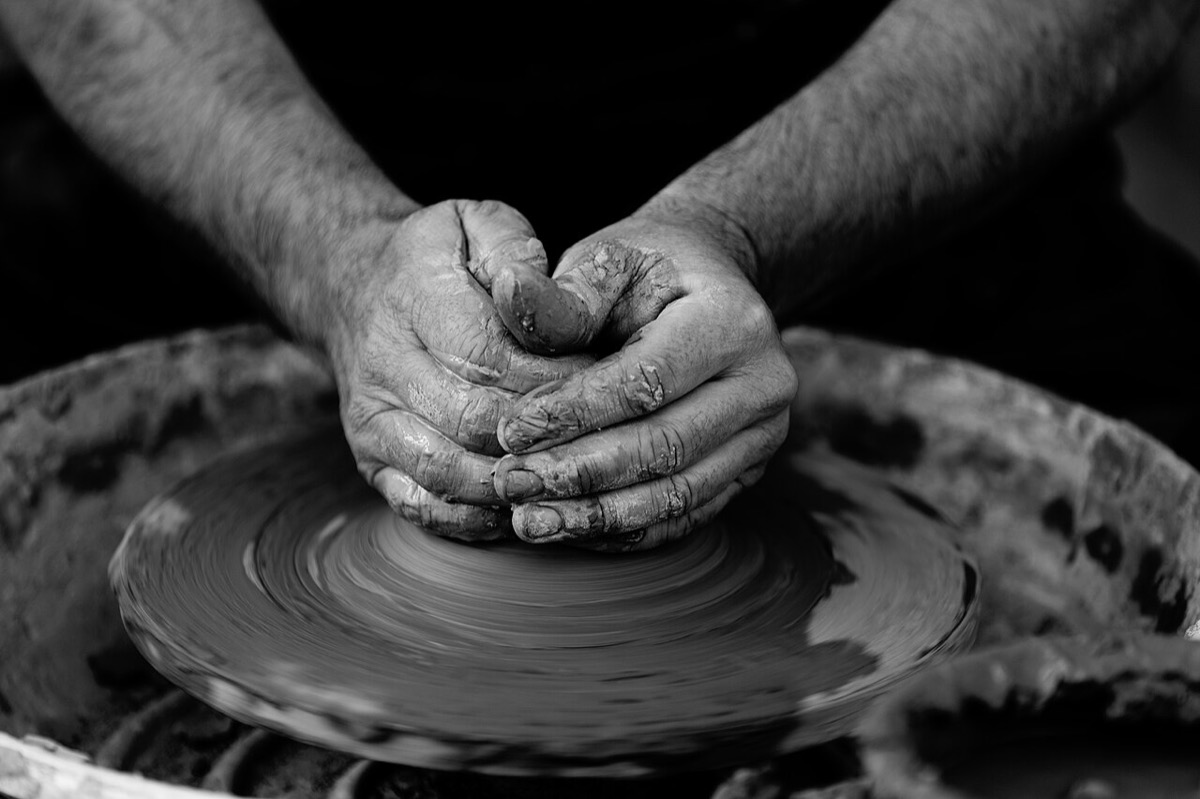 | Show who | Stock (Unsplash) | Yes | Missing | Fix: add alt text |
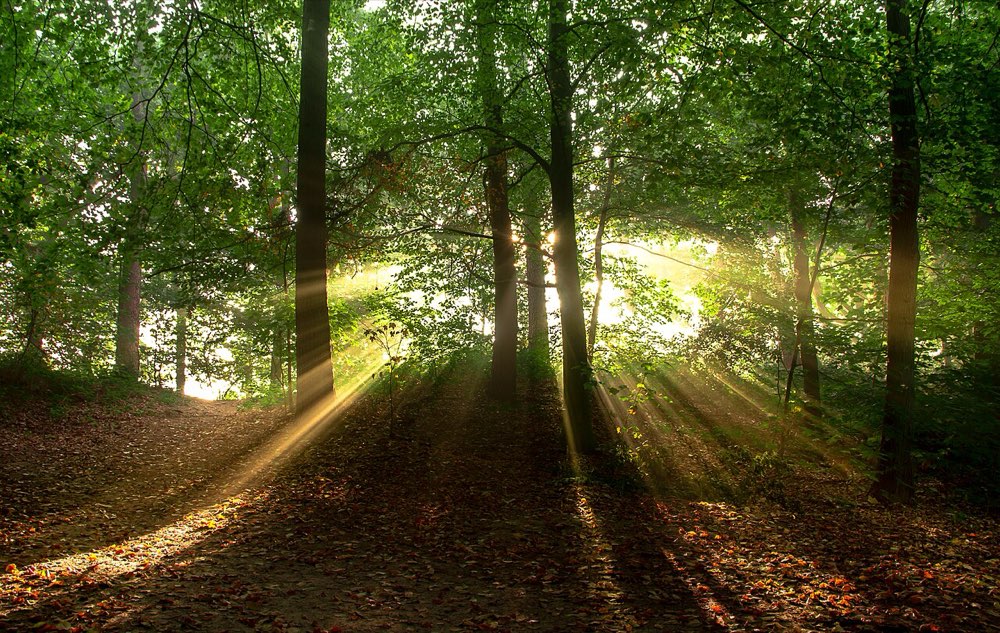 | Set the mood | Stock | Yes | Empty (decorative) | Fix: too big, pushes the sign-up button down |
Add a short Why for every fix and remove. "Generic stock, same photo on two competitor sites" is a good why. "Don't like it" isn't.
4. Look at the pattern, not just the rows
When the list is done, count:
- How many images have no job?
- How many have unknown licence?
- How many have missing alt text?
- How many large images are decorative?
These four numbers are your summary. They're more convincing than any screenshot, because they describe the whole flow and they're hard to argue with.
5. Share it so something changes
- Lead with the four numbers and the goal of the flow.
- Show two or three examples side by side: one image that works, one that doesn't, and why.
- Propose the cheapest fixes first: removing images costs nothing and often makes the flow faster.
- Ask who owns images in the product. If the answer is "nobody", that's the most important finding.
6. Common mistakes
- Auditing the whole product at once and never finishing.
- Recording opinions ("ugly", "nice") instead of jobs and facts.
- Skipping the small images: avatars, textures and partner logos also need licences and alt text.
- Ending with a list and no decisions.
7. Vocabulary
| Term | Meaning |
|---|---|
| Image audit | A list of every image in a product or flow, with facts and a decision for each |
| Alt text | The text a screen reader reads instead of the image; empty when the image is decorative |
| Licence | The permission to use an image, and its conditions |
| Flow | A sequence of screens people go through to reach a goal |
8. Try it (no tools needed)
- Choose one flow in a product you work on, or in a public website you know well.
- Fill in the table above for every image, on paper if you like.
- Make a keep, fix or remove decision for each, with a why.
- Write the four numbers from section 4 at the bottom.
Reflection questions: Which number surprised you most? Who would need to agree before you could remove an image?
9. If you already practise
- Repeat the audit every few months on the same flow. The four numbers over time show whether the product's imagery is getting better or worse.
- Add the audit columns to your design system's image guideline, so every new image arrives with its job, source, licence and alt text.
- Use the audit as the start of an image style guide. The "keep" rows are your first good examples.
Checklist
Learn more
- W3C WAI: Images Tutorial · An alt Decision Tree
- GOV.UK Design System: Images
Related
What an image does in a product · The photos nobody looks at · Photo, illustration or nothing