Photography and Imagery · Labs · 3 min read
Alt text workshop
A guided lab: write alt text for ten openly licensed images, each in a different place, then compare with suggested answers and listen to your own page with a screen reader. About forty-five minutes.
The same photo needs different words in different places. You'll write alt text for ten images, each placed somewhere specific: a product page, a link, a recipe step, a mood photo. Then you'll compare with suggested answers, and finish by listening to one of your own pages the way a screen reader user does.
What you'll do:
- Decide each image's kind: decorative, informative, functional or complex
- Write alt text for ten images, for their place
- Compare with suggested answers
- Listen to one of your pages with a screen reader
You'll need: paper or a notes app, a phone or computer with its built-in screen reader, about forty-five minutes.
1. The ten images
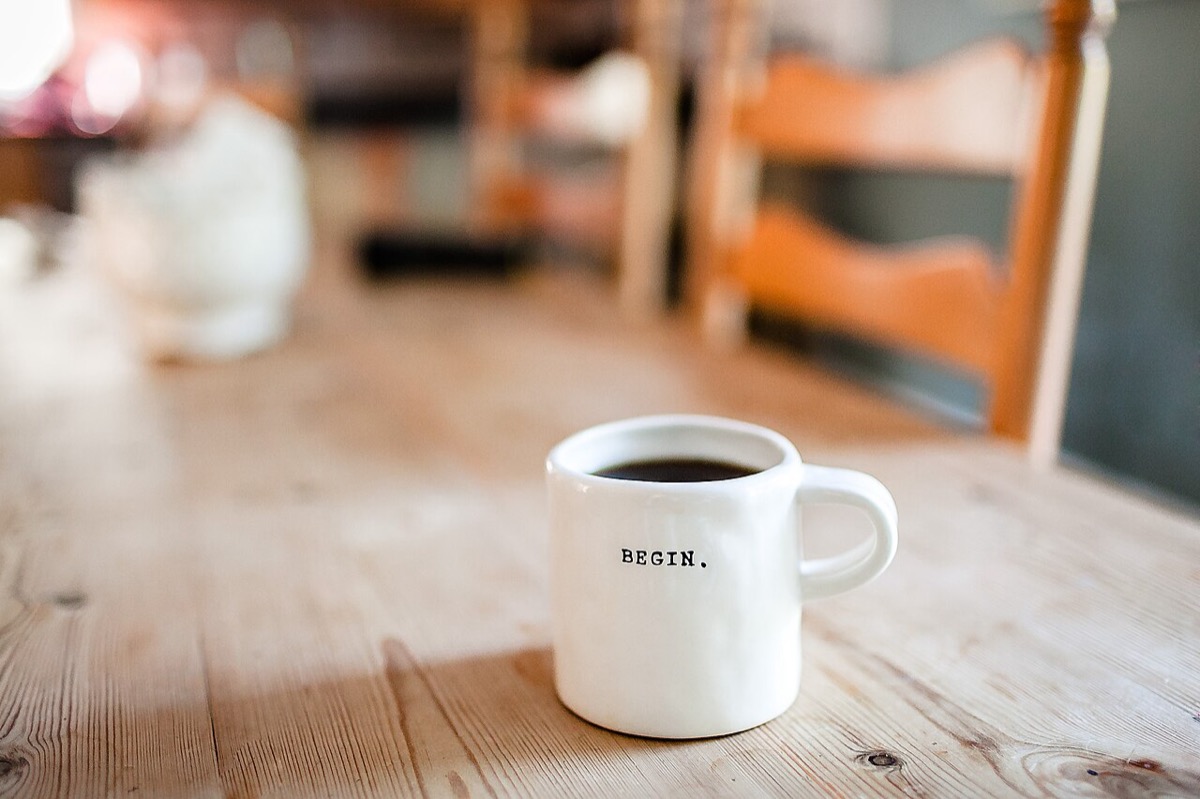 1. A café's home page, behind the headline "Slow mornings"
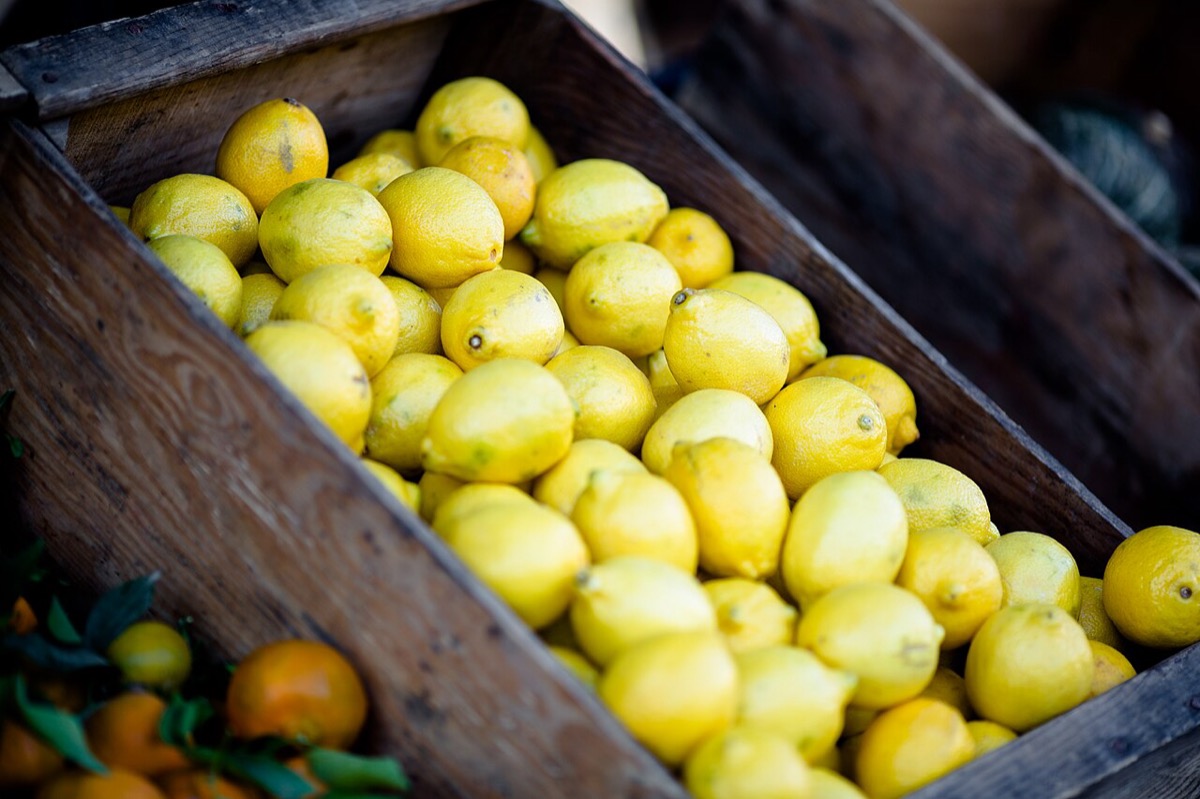 2. A grocery product page for lemons
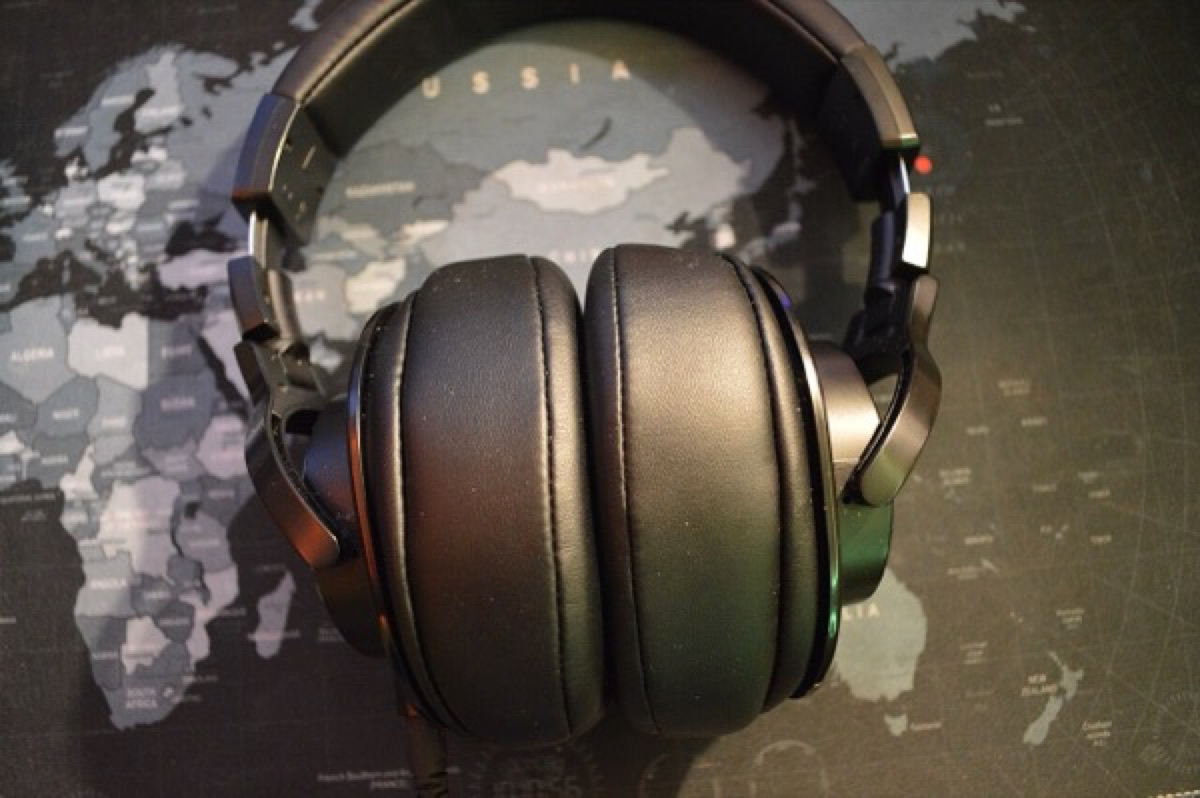 3. An online shop, the only content of a link to the product
 4. A hiking app, a mood photo under a search box
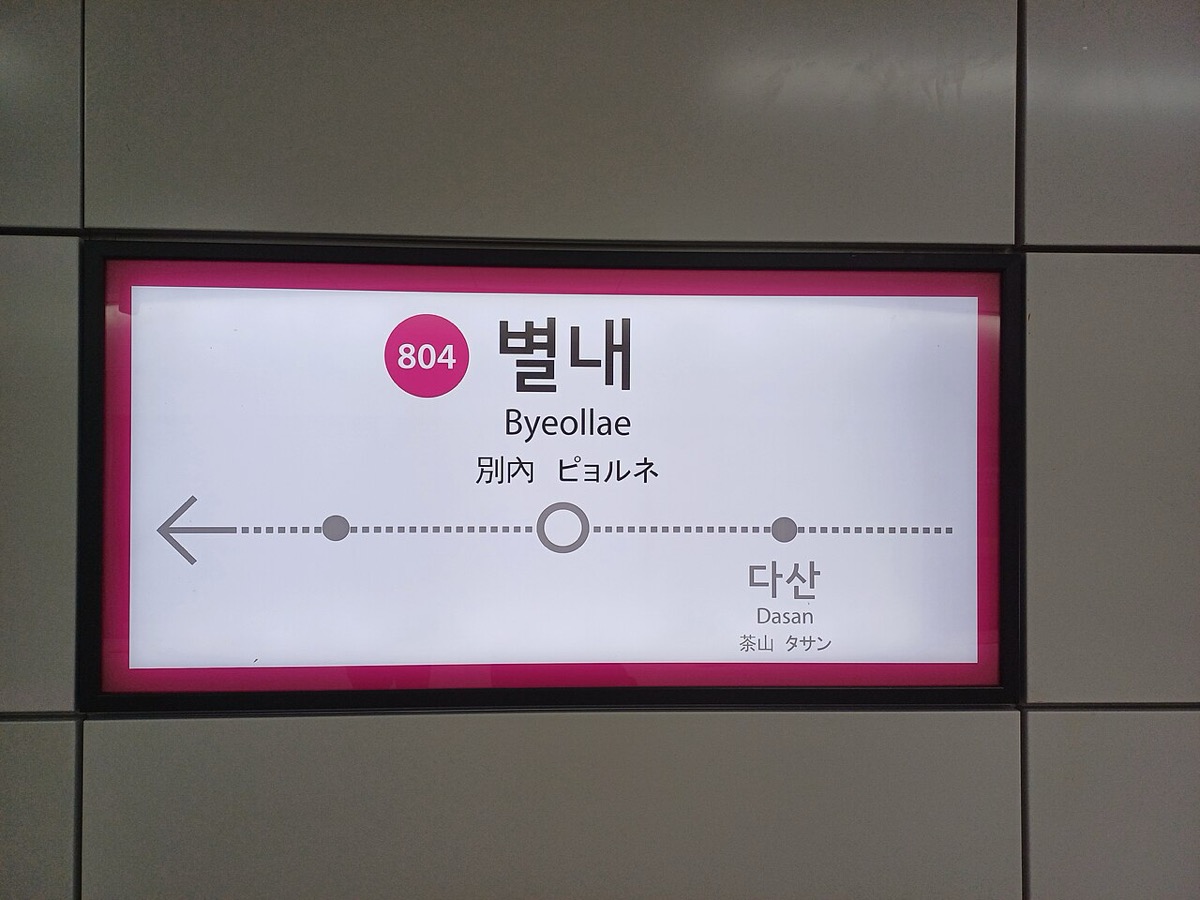 5. A travel guide, in a step: "Get off at this station"
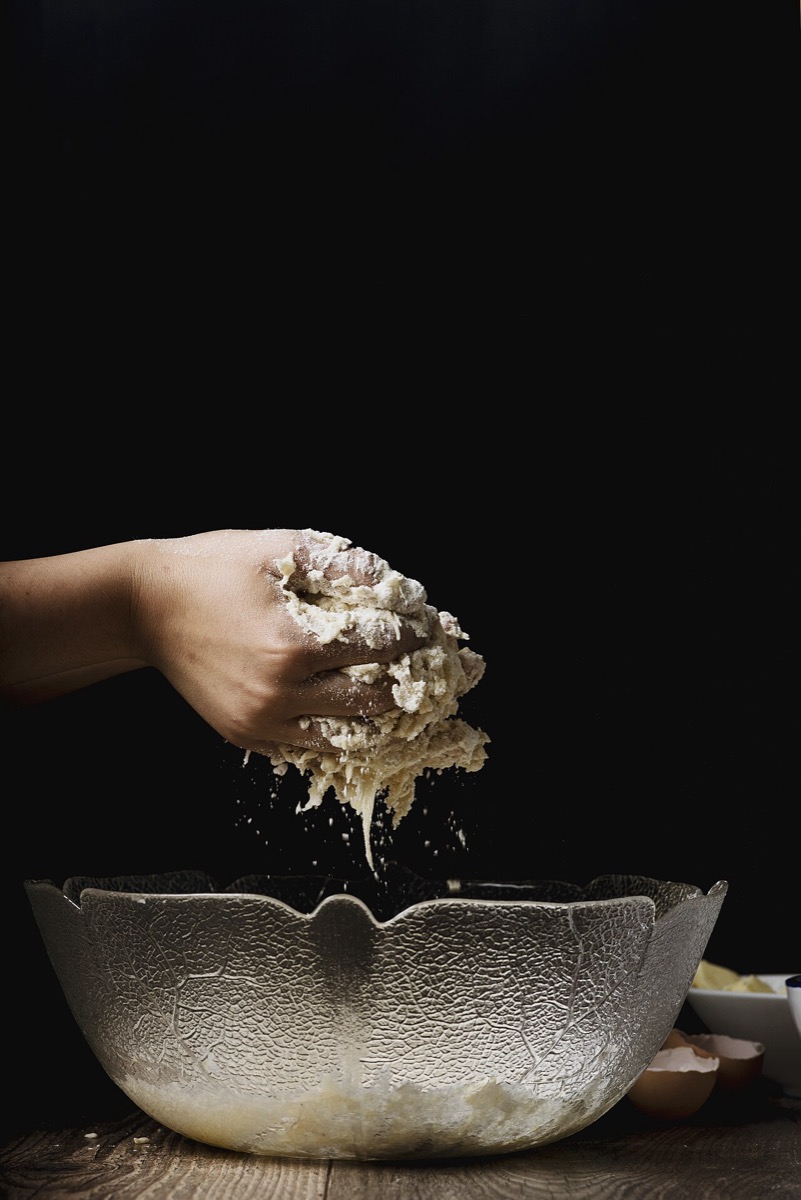 6. A recipe, the photo for step 2
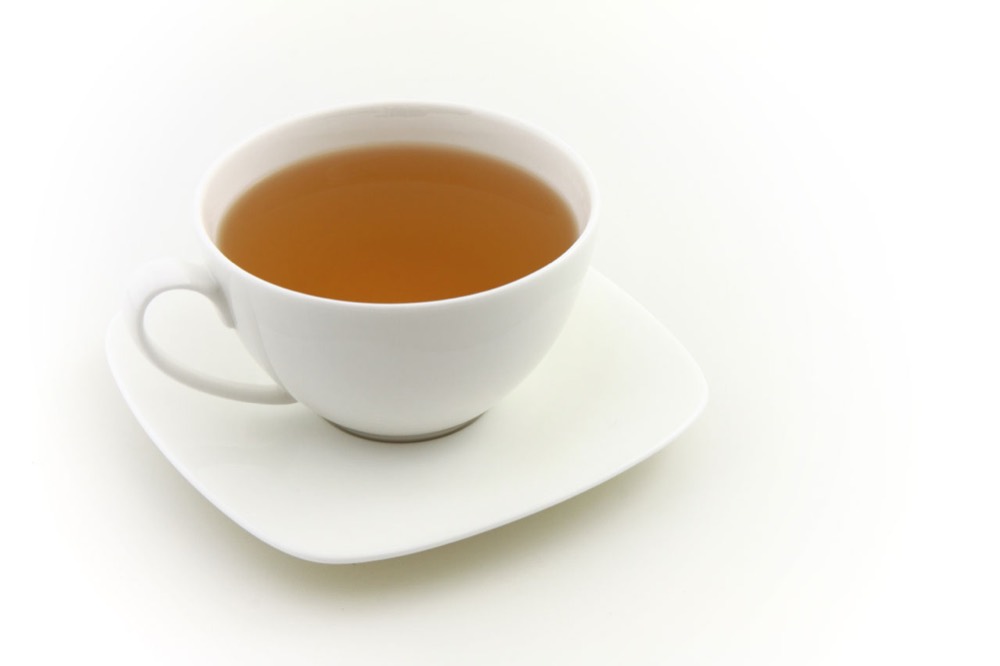 7. A tea shop, next to the product name and price
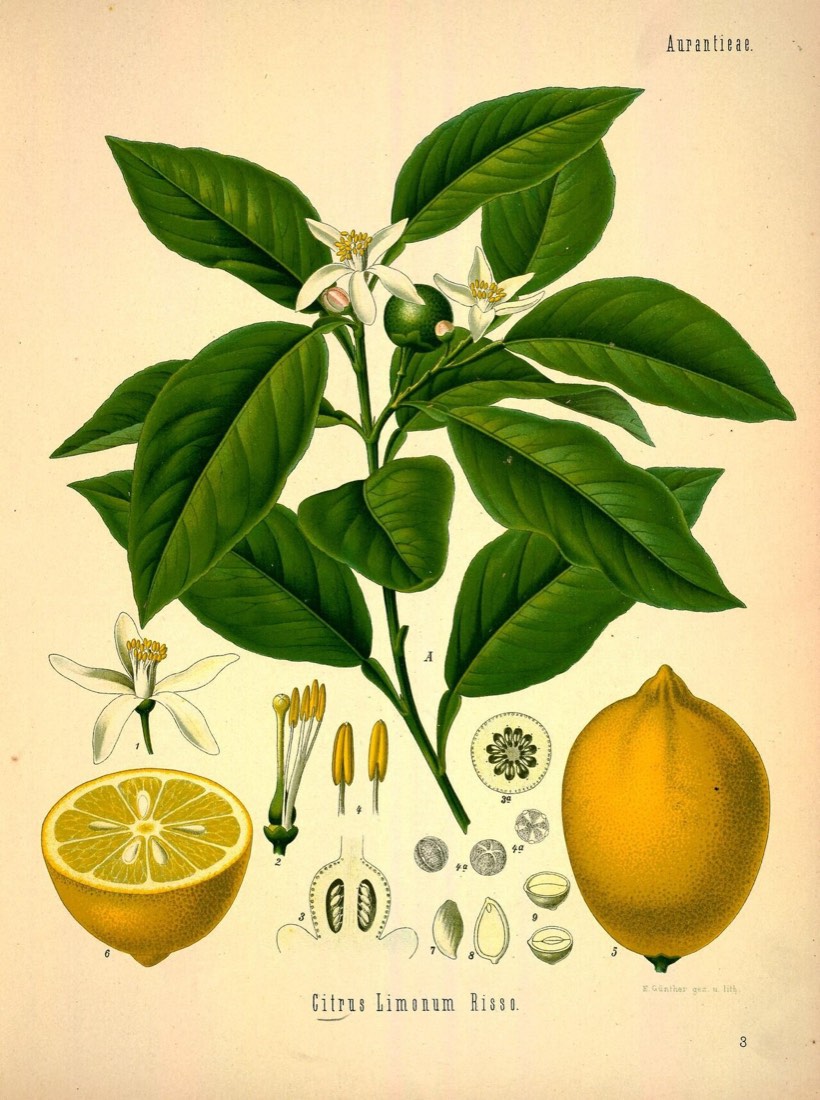 8. A biology lesson about citrus fruit
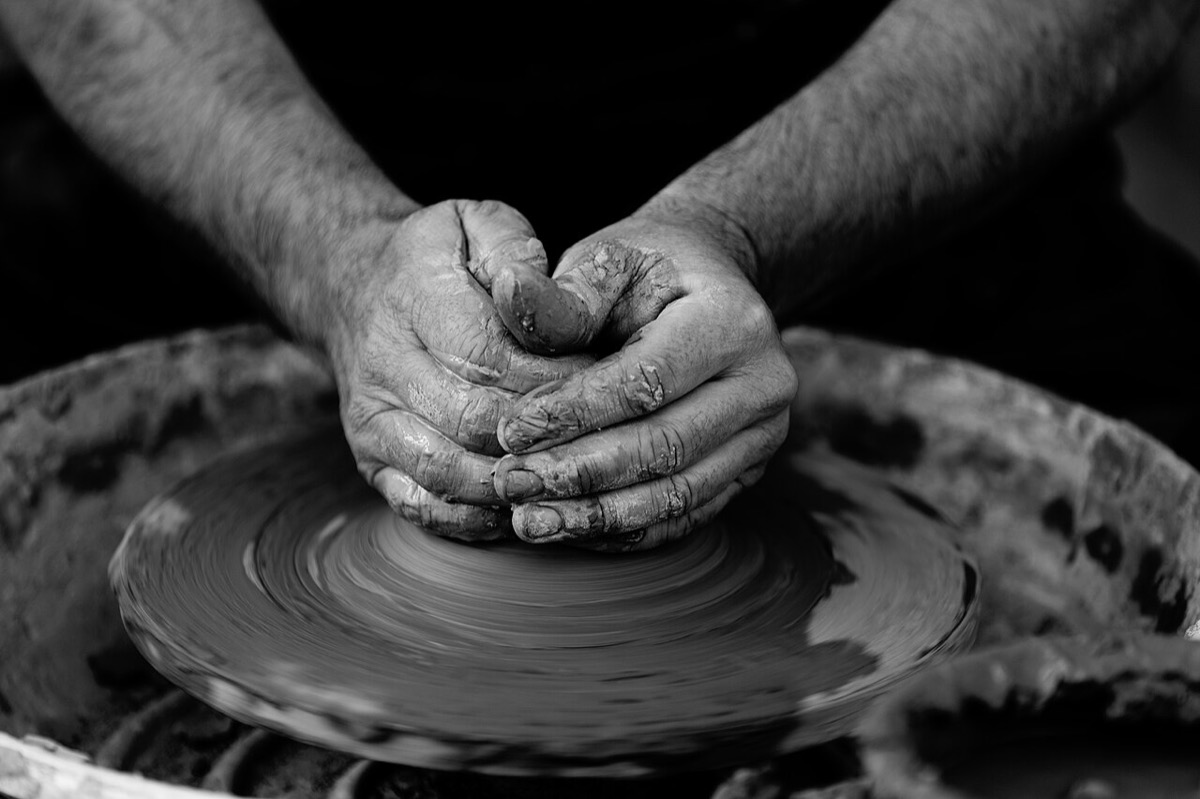 9. A craft school's "About us" page
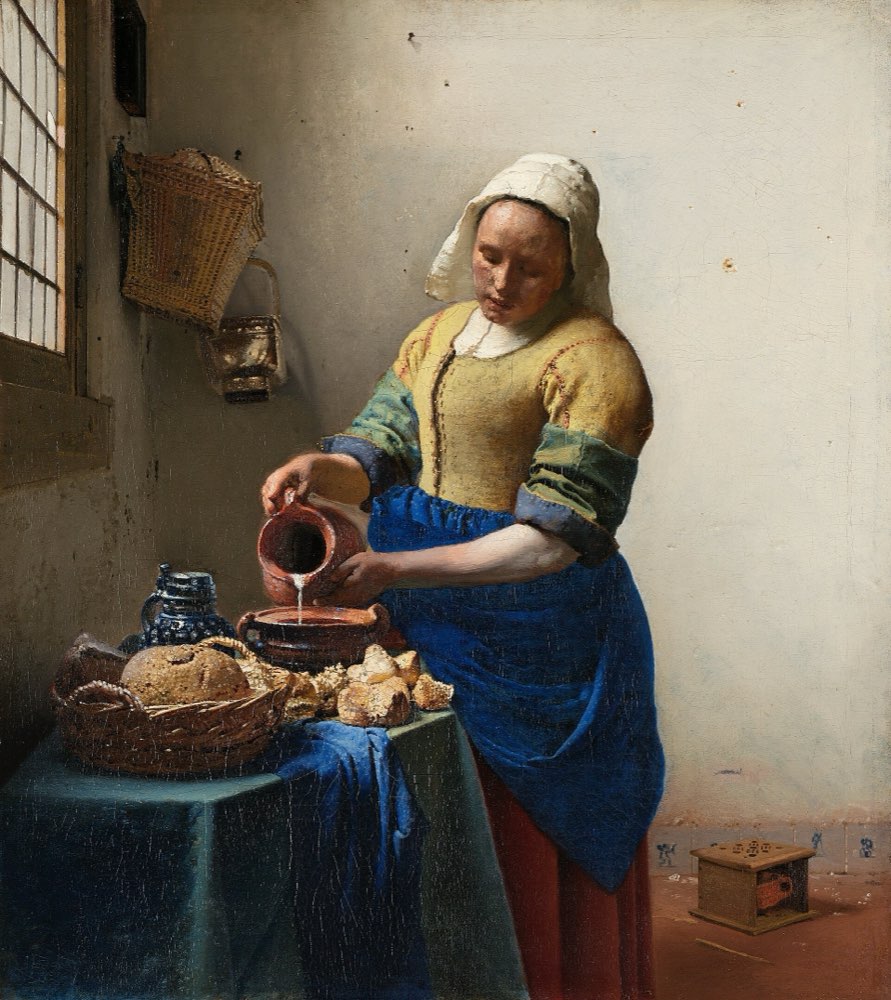 10. A museum page for the painting
2. Decide the kind, then write
For each image, first write its kind (see Alt text that helps), then the alt text, in one sentence, or alt="". Ask the question the course started with: what is this image doing here?
Write all ten before you look at the answers.
3. Compare with the suggestions
- Decorative:
alt="". The headline carries the message; the mug is mood. - Informative: "A crate of bright yellow, ripe lemons." Ripeness is what a buyer checks.
- Functional: the product's name, for example "Studio headphones, black". Say where the link goes.
- Decorative:
alt="". The search box is the content. - Informative: "Station name board, with an arrow and the previous and next stops." It helps someone confirm they're in the right place and going the right way.
- Informative: "Hands lifting the dough out of the bowl." The step, not the kitchen.
- Decorative or informative: if the name and price are next to it, a short "White cup of tea on a saucer" or even
alt=""; check what the text already says. - Complex: a short alt, "Botanical plate of the lemon tree: branch, flower, fruit and cross-sections", and the parts described in the lesson text.
- Informative: "A potter's hands shaping clay on a wheel." It says who the school is.
- Informative: "Johannes Vermeer, The Milkmaid: a woman pouring milk at a table by a window." On a museum page, the work and its subject.
Where yours differ, ask: is the difference about the job, or about the words? Different words for the same job are fine.
4. Listen to your own page
Turn on a screen reader: VoiceOver on Mac and iPhone, TalkBack on Android, Narrator or the free NVDA on Windows. Open a page you designed and move through it image by image. Write down every image that said nothing useful, said too much, or read a file name.
5. Fix three
Rewrite the alt text of the three worst images from step 4, and, if you can, change them in the product. Add an alt text field to the design file or spec where they came from, so the next one is written at design time.
6. Check your work
Reflection questions: Which image was hardest to write for, and why? What surprised you most when you listened to your own page?
Related
Alt text that helps · What an image does in a product · Audit the images in your product · Images and page speed · Alt text decision tree